
Organisation settings hold the details you want to reuse across your documents. Each setting is available as a placeholder, so your organisation name, logo, address, and contact details can appear consistently in document headers and headings, footers, cover pages, and content pages.
This article explains how to edit your organisational settings.
Open organisation settings
- Sign in and select the workspace you want to manage.
- Select your account name in the top-right corner.
- Select Settings. The Organisation tab opens by default.
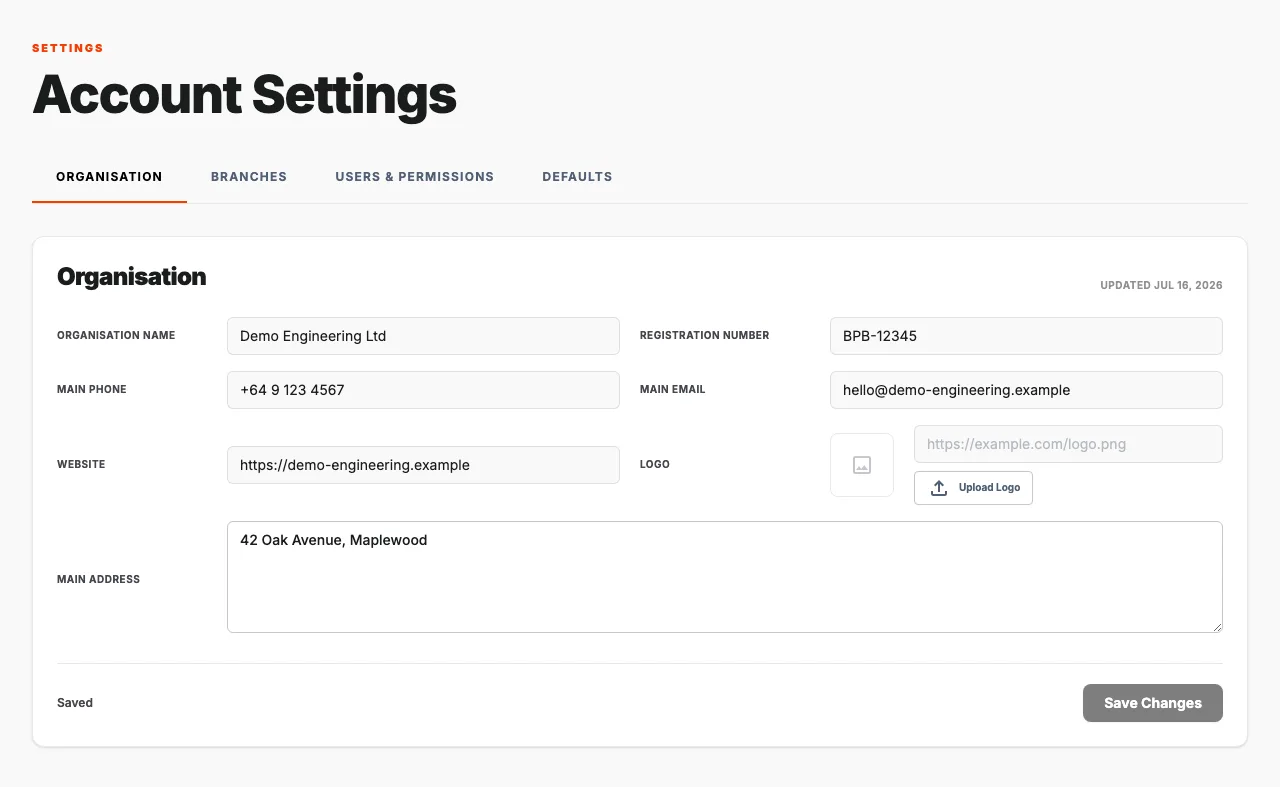
Organisation details
Complete the fields that apply to your organisation:
- Organisation Name is the name shown for your organisation.
- Registration Number stores your company or organisation registration number.
- Main Phone and Main Email are your primary contact details.
- Website is your organisation's full website address, including https://.
- Main Address is the postal or street address you want associated with the organisation.
Add your logo
You can add a logo in either of two ways:
- Paste a publicly accessible image address into the Logo URL field.
- Select Upload Logo and choose an image from your device.
A preview appears beside the logo field. Select Remove to clear the current logo before saving.
Save your changes
After you edit a field, the status at the bottom of the panel changes to Unsaved changes and the Save Changes button becomes available. Select it to apply your updates.