
Customers identify the people or organisations you prepare work for. Locations are the individual properties or worksites that belong to a customer. When you create a job, you choose a customer and one of their locations, making those details available to the reports created for that job.
This article explains how to add a customer, create their first location, and add more locations later.
Understand customers and locations
- A customer is the person, household, company, or other client the work is for.
- A location is a specific property or worksite belonging to that customer.
- A customer can have several locations, but each job uses one selected location.
Customer and location details can populate the {customerName}, {locationName}, and {locationAddress} placeholders in report content, cover pages, headers, and footers.
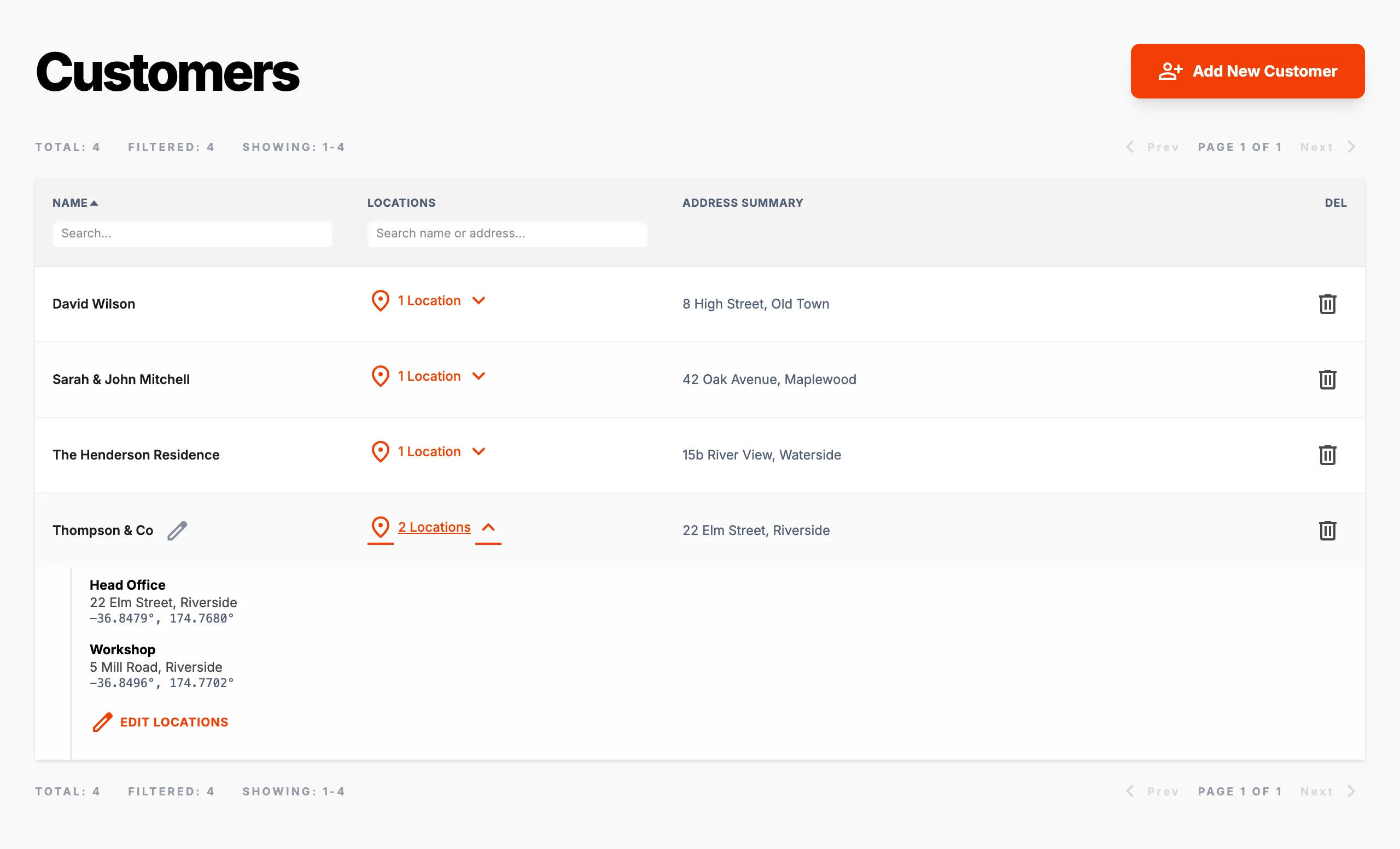
Add a customer
- Select Customers in the main navigation.
- Select Add New Customer.
- Enter the customer's name in Customer Name.
Add the first location
Every new customer must have at least one location. Complete the location fields beneath the customer name:
- Name identifies the site, such as Main Building, Head Office, or Primary Residence.
- Address is the street or site address. The name and address are required.
- Longitude and Latitude are optional. If you provide coordinates, enter both values using decimal degrees.
- Polygon is an optional GeoJSON boundary for advanced mapping use. Leave it blank when a boundary is not required.
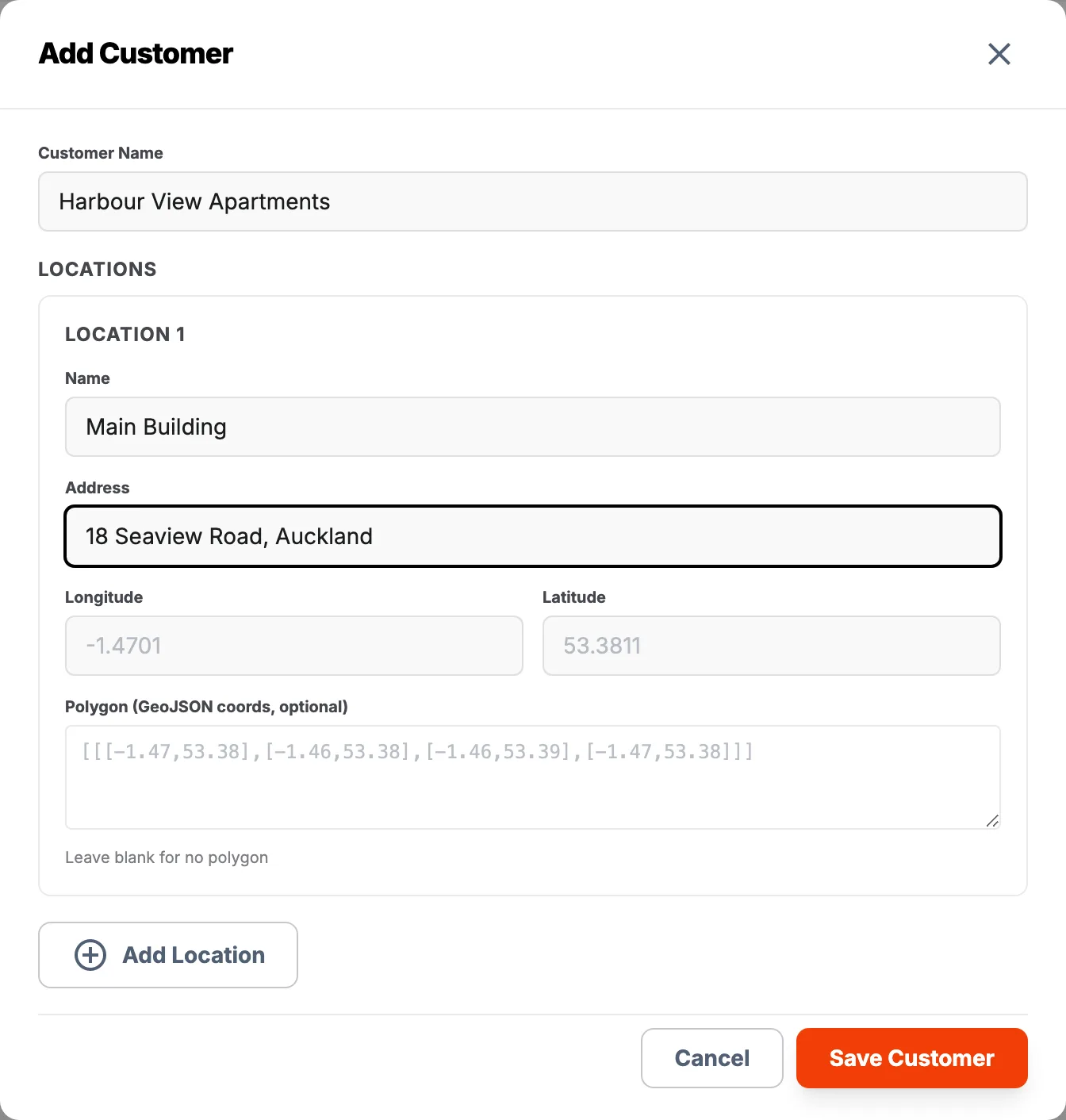
Select Add Location before saving if the new customer has another property or worksite. Repeat the location fields for each site, then select Save Customer.
Add locations to an existing customer
- On the Customers page, select the customer's orange location count to expand the row.
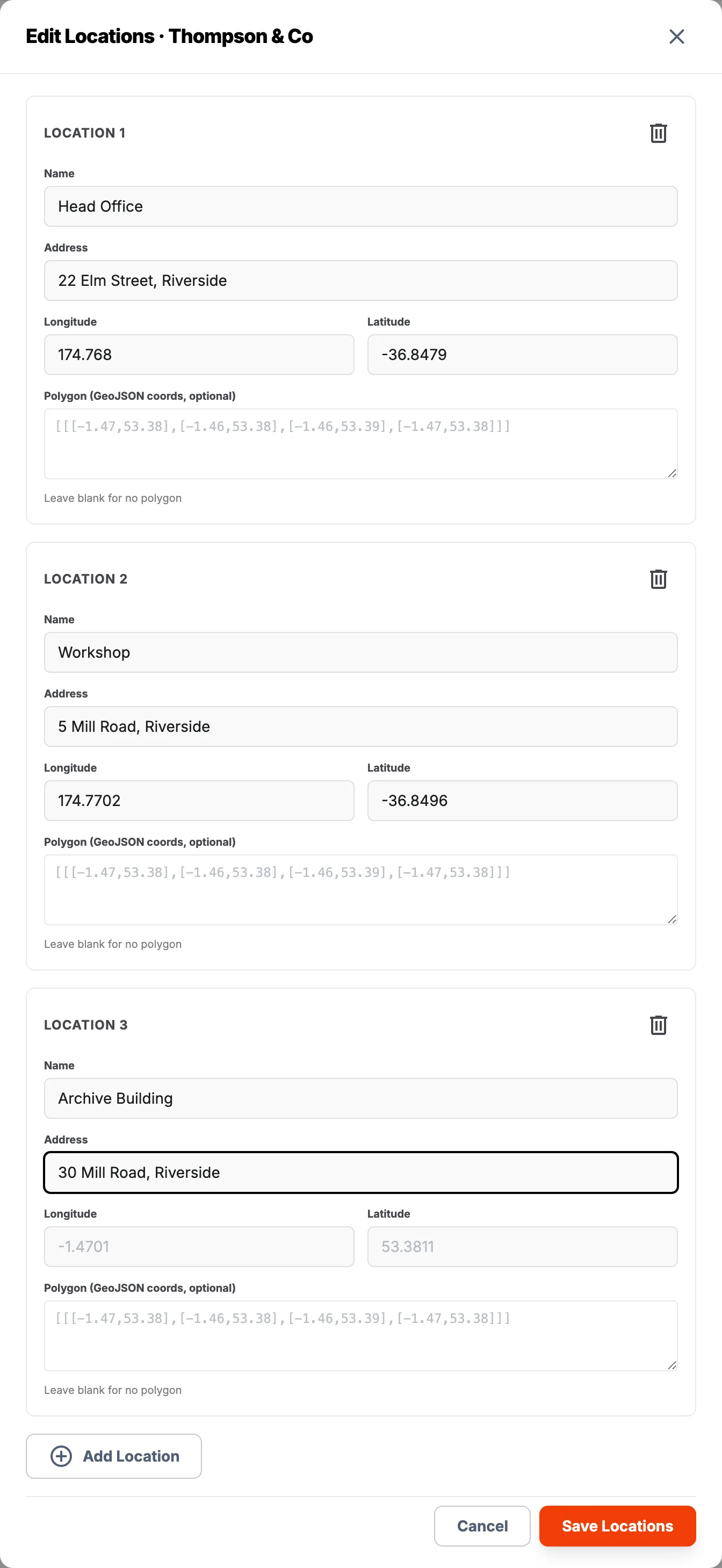
- Select Edit Locations.
- Select Add Location.
- Enter the new location's name and address. Add coordinates or a polygon when they are available and useful.
- Select Save Locations.
Use the customer in a job
The customer and each saved location become available when you create a job. Select the customer first, then choose the location where the work will take place.
If you later update a saved location, QuantaDocs carries those changes through to existing jobs and reports that use it.