
Jobs connect a customer and one of their locations with a specific piece of work. A job records its schedule and assigned users, and provides the container for the reports produced for that work.
This article explains how to create a job, assign one or more users, and manage its status.
Why use jobs
A job is the container for all the reports produced for a specific piece of work. Shared information such as a job reference can be stored once against the job, giving the team consistent context while they work on any of its reports.
You select the customer and location once at job level. Reports created for the job can then reuse the customer name, location name, and location address through placeholders, instead of requiring that information to be typed into every report.
The start date, start time, expected duration, and assigned users also make jobs useful for coordinating a team that may perform many jobs during a week or month.
- Every job belongs to one Customer and uses one of that customer's saved Locations.
- A job can contain one or more reports related to the same work.
- The Reference can hold a purchase order, claim number, or client reference.
- QuantaDocs generates the job number when the job is saved.
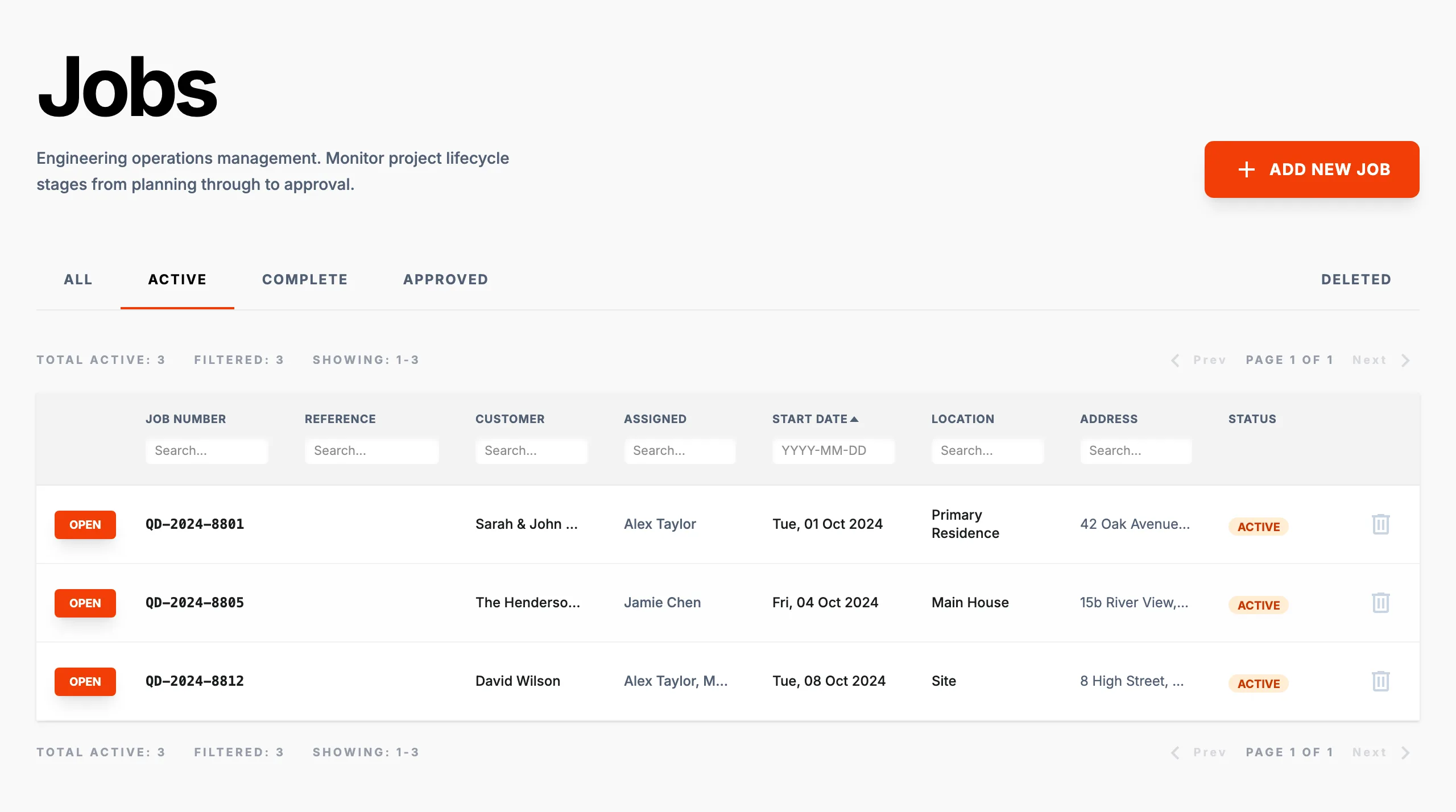
Create a job
- Select Jobs in the main navigation.
- Select Add New Job.
- Search for and select the Customer. Only customers with at least one location are available.
- Enter a Reference when you have a purchase order, claim number, or other useful identifier. This field is optional.
- Select the Location where the work will take place.
Assign one or more users
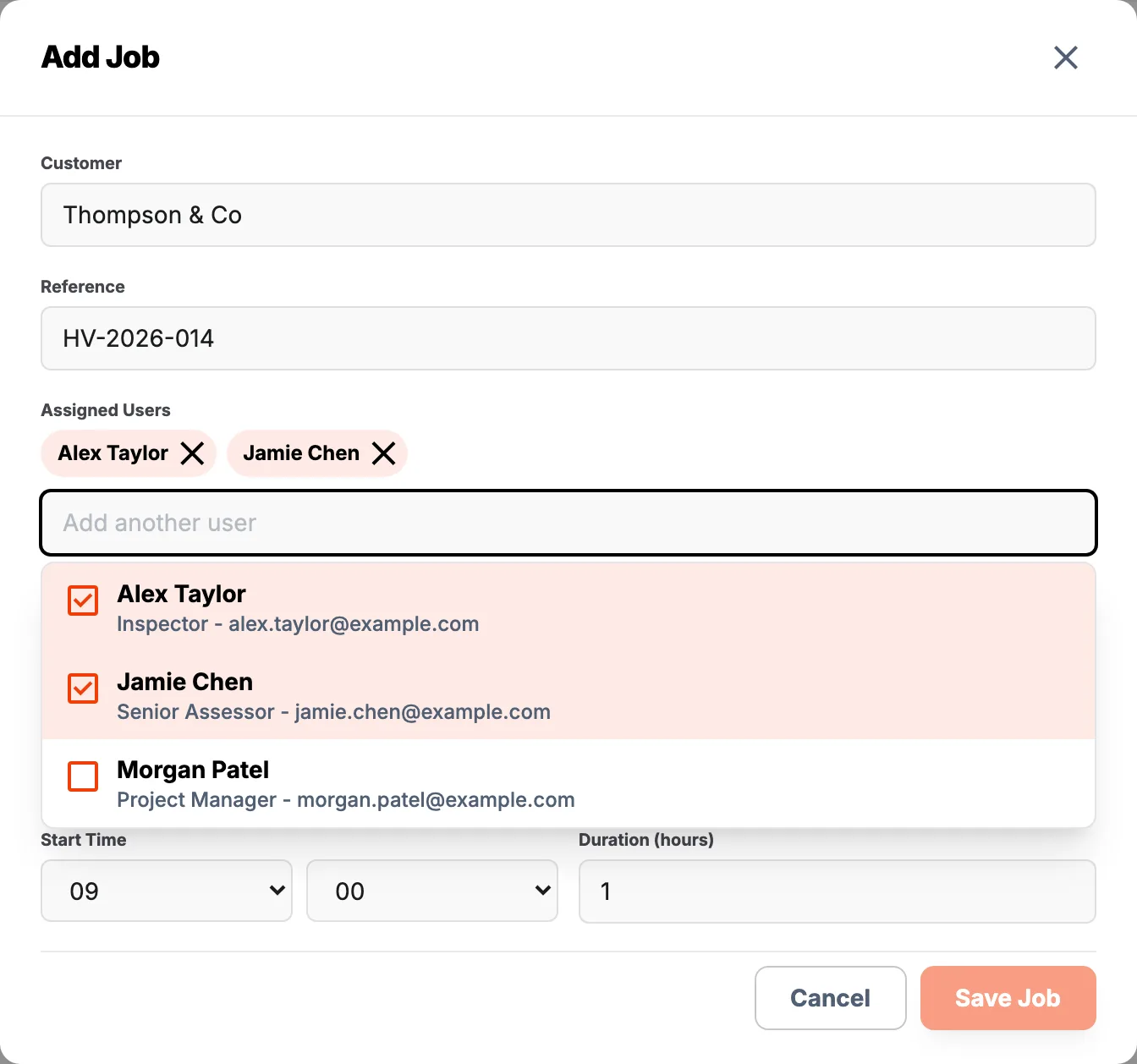
- Select the Assigned Users field.
- Search by a user's name, position, or email address.
- Select each user who should be assigned to the job. A tick and a name label identify selected users.
- Select the close icon beside a selected name to remove that user.
A job can be assigned to one user, several users, or left unassigned. You can change its assigned users later by opening the job and selecting Edit under Client Information.
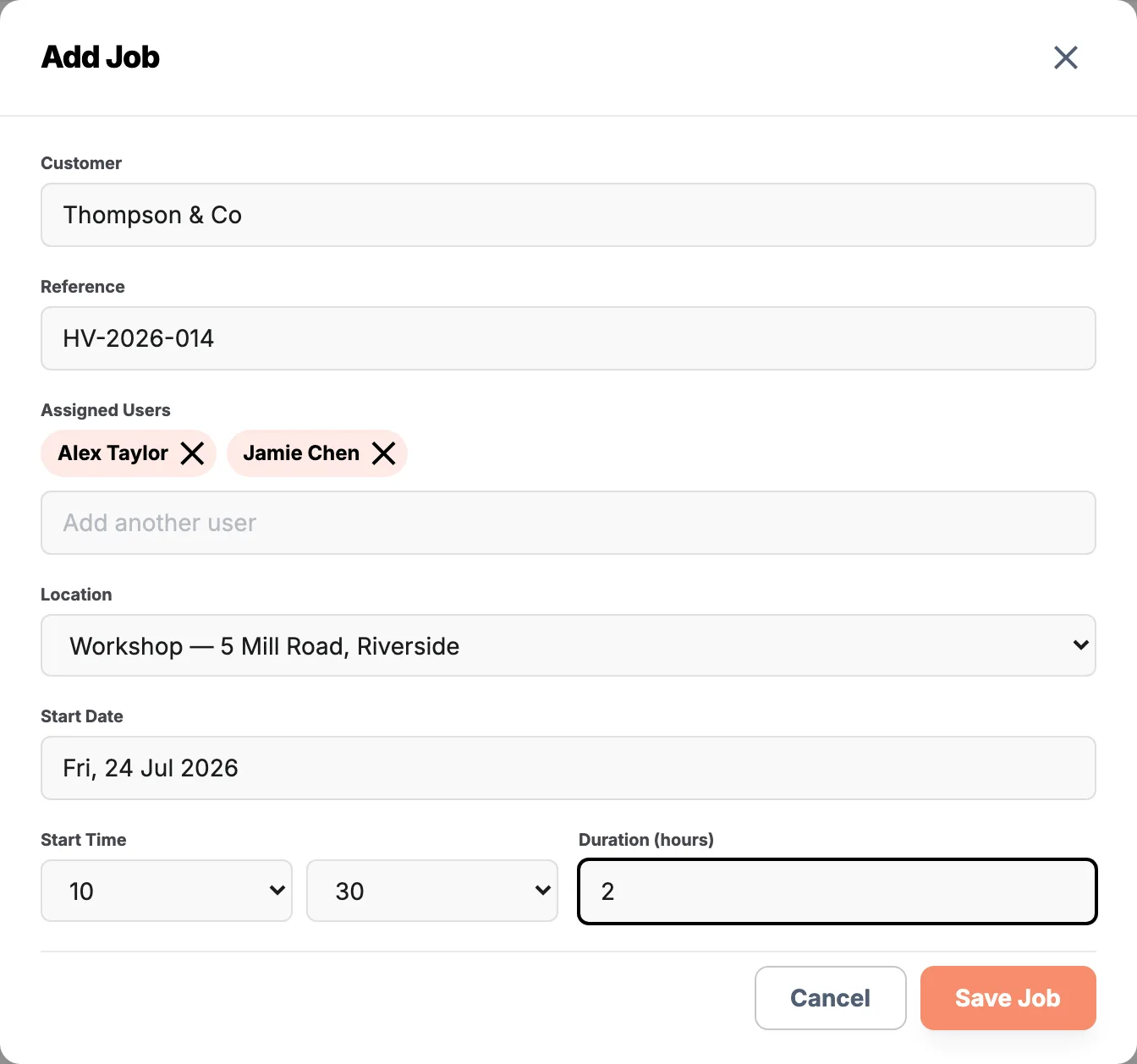
Schedule and save the job
- Choose the Start Date.
- Set the Start Time.
- Enter the expected Duration in hours. Quarter-hour increments are supported.
- Select Save Job.
The required customer, location, date, time, and duration must be present before the job can be saved. QuantaDocs then assigns a job number, creates the job as Active, and opens its job page.
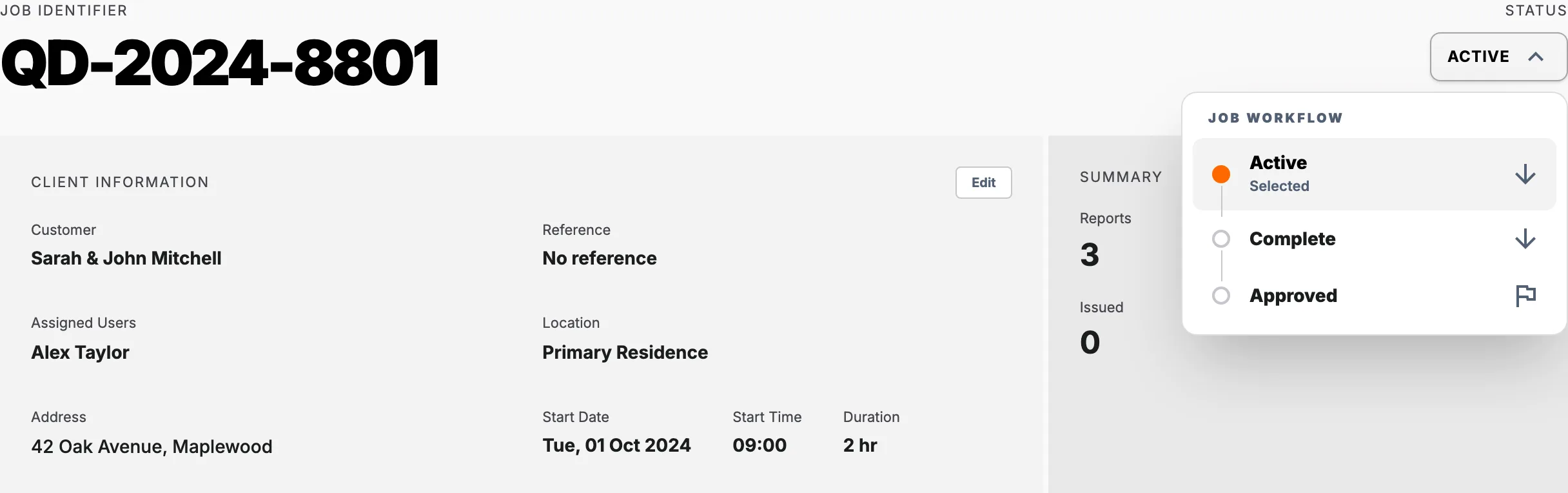
Understand job statuses
Job statuses describe the overall progress of the work:
- Active identifies planned or current work. Every new job starts in this status.
- Complete indicates that the work for the job has been completed.
- Approved records that the completed job has received final approval.
Open the job and select its status in the top-right corner to choose another workflow status. Status changes are manual, and changing a job's status does not change the statuses of its reports.
Deleted jobs
Deleted is separate from the three workflow statuses. Deleting a job moves it to the Deleted tab instead of permanently removing it. Its reports and history remain available, and the job can be opened and restored.